Targeted universes allows you to create lists of voters based on specific criteria. You can target as many different criteria as needed to create the perfect universe for your canvass. In this article, we will go over the basics of building a universe.
To get started, select Targeting from the left-side menu. If you have not selected a campaign to work in, you will not be able to build a universe. If you have, you will be brought to a page where you can see a list of all of the created universes in your campaign. You may click on any universe to edit.
Some universes may be locked by the creator, in which case you would not be able to edit it. You may lock your own universe to prevent others from making changes, or keep it unlocked for collaboration.
Note: If you have not made any universes yet, you will be immediately brought to the Universe Builder.
To create a new universe, select + New Universe.

Before doing anything else, you will need to name your universe:
By default, universes will only select Active voters. There’s no need to change this unless you are planning a voter registration drive or policy work where registration status does not matter.
Start building the base of your Universe by clicking ADD FILTER. You can add as many filters as you would like to each step of your universe.

Select the data type for filtering your results. Each query type and criteria will give you drop downs for clarity, and available options.

Then click ADD TO CRITERIA to add the criteria to your Universe.
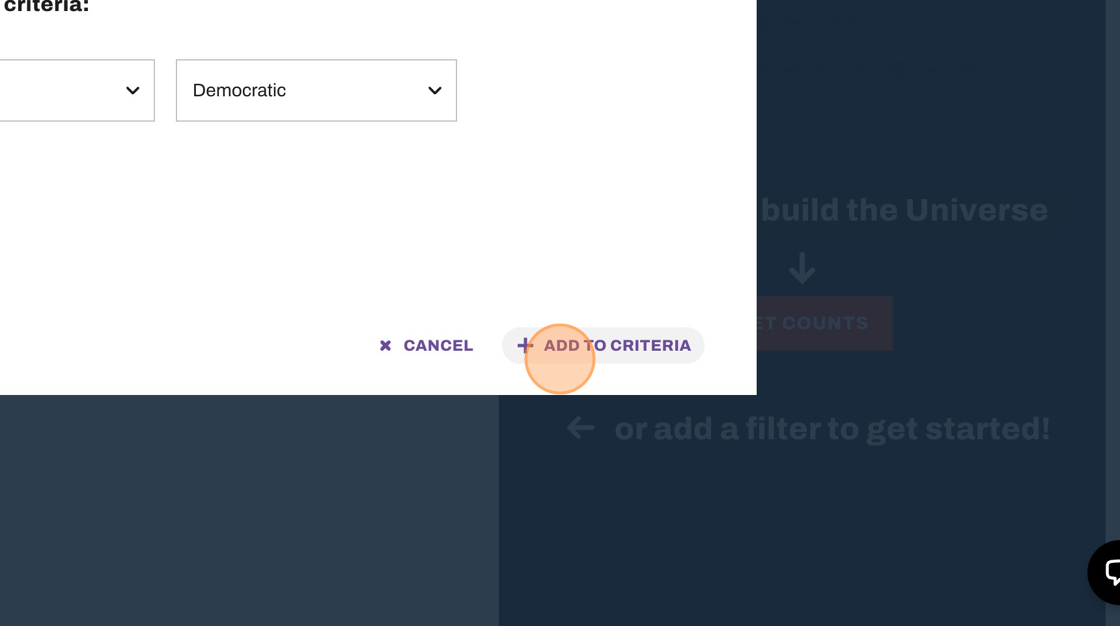
Continue to add filters by core data, enhanced data, location data, and Votivate data by clicking ADD ANOTHER FILTER
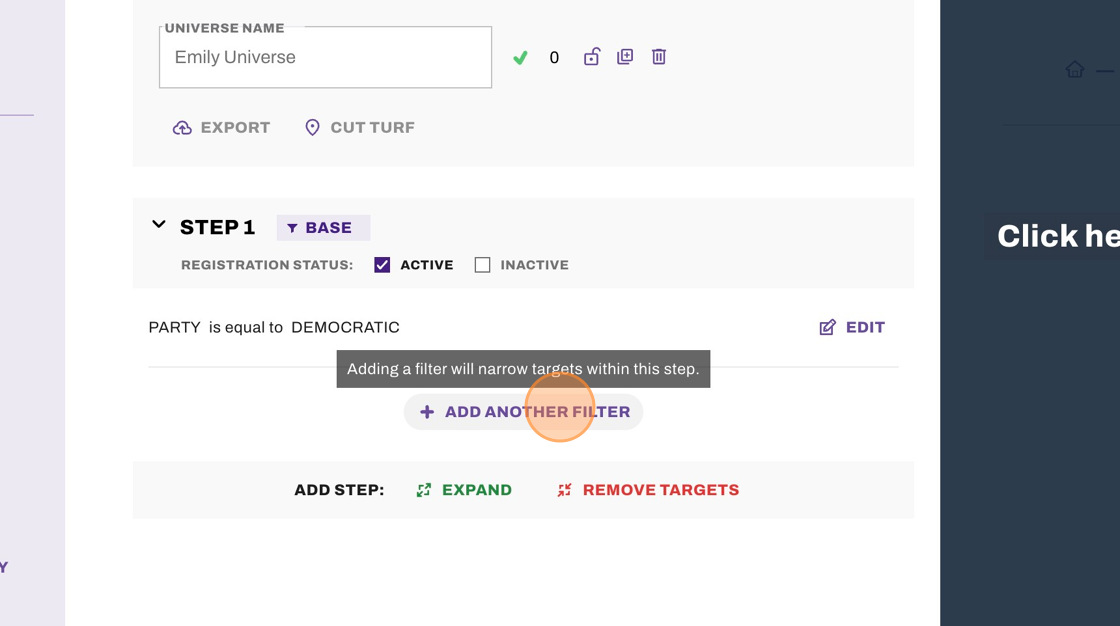
Note: Certain sections allow users to click one one data point, while others allow for multiple data points to populate a Universe.
Once you have added in all your filters, click GET COUNTS to build the Universe. You can repopulate your universe any time by clicking on this feature.

This feature will give you a demographic breakdown of your universe.
If you want to build upon your base by either adding or removing voters, you can choose between EXPAND and REMOVE TARGETS next to ADD STEP.
Important: This will not follow any filters you created in Step 1. For example, if you'd like to filter out anybody who is not a registered Democrat, you would have to select that filter within each step as you continue to expand your universe. If you did not add that filter to Step 2, then you would get voters registered to any party.

Delete your expansion at any time by clicking the red trash can symbol, and confirming you would like to delete this data.

Use the "EXPORT" button to export data via our Data Admin center.

Click "CUT TURF" to assign your Universe via Turfs in our Turf Map.

Click "GO BACK" to return to see all Universes in your Targeting section.

EXAMPLE UNIVERSES:
Let's say you want to talk to all Democrats under 30. You would:
- Select Party → Democrats
- Add Filter → Age → Less Than → 30
Keep in mind that the fewer filters you have on your universe, the larger your list will be. Therefore, it may take longer to load the universe. We recommend selecting most of your filters beforehand to make your universe load faster.
Maybe you want to talk to all left leaning Black voters under 40 and you also want to talk to any Black women over 40. You also want to remove anyone who has already voted in the current election year.
STEP 1
Add Filters:
- Party any of Democrat, Green, Unaffiliated
- National Partisan Score greater than 65
- Age less than 40
- Likely Race equal to African American
STEP 2
Expand:
- Party any of Democrat, Green, Unaffiliated
- National Partisan Score greater than 65
- Likely Race equal to African American
- Gender equal to Female
- Age greater than 40
STEP 3
Remove:
- Select Remove Targets
- Select Tags → Any of → Early Voted GE 2025
Once you have created your universe, select Get Counts on the right and load your universe.
Comments
0 comments
Please sign in to leave a comment.